Starting a WordPress blog is exciting, but if you want it to run smoothly and grow fast, you’ll need the right tools. That’s where plugins come in. Plugins extend WordPress’s functionality, helping you with SEO, speed, backups, and security. But with thousands available, choosing can feel overwhelming — especially for new bloggers.
That’s why I’ve created this guide to the best WordPress plugins for beginners. These are the essential tools that will give your blog a strong foundation, keep it secure, and make it easier for you to focus on creating content and growing your audience.

Why Beginners Need WordPress Plugins
WordPress is an incredibly powerful platform, but out of the box, it’s fairly basic. Plugins allow you to:
- Enhance functionality: Add forms, SEO tools, or image optimization without coding
- Improve security: Protect your site from hacks, malware, and spam
- Boost performance: Speed up your site to keep visitors happy and rank well in search engines
- Grow your audience: Track analytics, integrate social media, and encourage sharing
While plugins are essential, it’s important to choose carefully. Too many plugins can slow your site and increase the risk of conflicts. Each plugin you install adds extra code that your website has to load, and when you pile on unnecessary ones, your blog may become sluggish. A slow site doesn’t just frustrate visitors — it can also hurt your search engine rankings.
Another common issue with installing dozens of plugins is compatibility. Plugins are created by different developers, and sometimes the code from one conflicts with another. This can cause broken layouts, missing features, or even prevent your site from loading entirely. To minimize this risk, stick to well-maintained plugins that are frequently updated and have strong user reviews.

The best approach is to focus on quality over quantity. Instead of trying every new plugin you come across, identify the core features your blog truly needs — such as SEO, security, performance, backups, and forms. Once you have these essentials covered, you can carefully add optional plugins that provide real value without bloating your site.
Finally, always test plugins on a staging site before rolling them out on your live blog. A staging site is a safe copy of your website where you can try out new features, run updates, and troubleshoot without risking downtime. This extra step may feel tedious, but it’s one of the smartest habits you can build as a beginner blogger. It protects your content, keeps your site professional, and helps you avoid stressful surprises.
1. Best SEO Plugins for WordPress Beginners
For every beginner blogger, SEO (Search Engine Optimization) is critical. The right SEO plugin ensures that your content is search-engine friendly, making it easier for people to find your blog.
Every plugin on this list of WordPress plugins for beginners was chosen because it solves a problem you’ll actually run into.
Recommended Plugins:
- Yoast SEO: Offers easy-to-use content analysis, meta tag management, and readability checks.
- Rank Math: Lightweight, beginner-friendly, and includes automated schema markup for better search visibility.
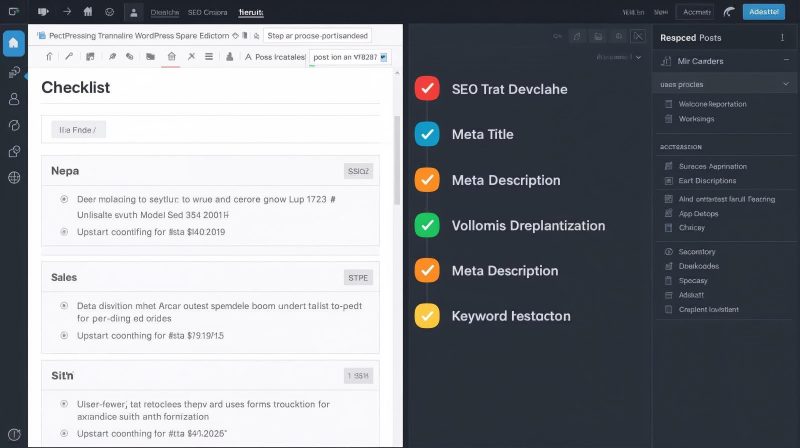
With an SEO plugin, you can:
- Add meta titles and descriptions for each post
- Optimize keywords without guesswork
- Generate XML sitemaps for Google indexing
Tip: Always fill out the SEO fields while drafting posts to save time and improve ranking potential.
2. Security Plugin: Keep Your Blog Safe
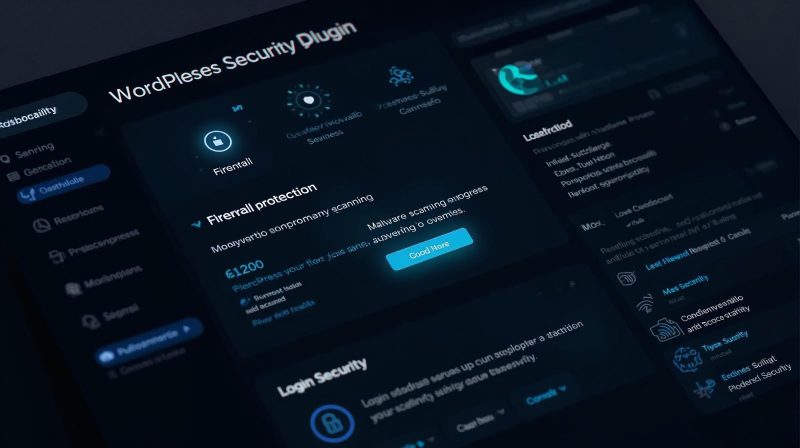
Nothing is worse than losing your blog to hackers or malware. Not only can a breach compromise your content, but it can also damage your reputation, slow your site down, or even get you blacklisted by Google. Since WordPress is such a popular platform, it’s often a target for cyberattacks, which makes security one of the most important steps you can take as a new blogger.
WordPress security plugins provide multiple layers of defense. Instead of leaving your site exposed, they actively block malicious traffic, scan for suspicious files, and notify you if someone is trying to break in. This means you don’t have to constantly worry about the technical side of protecting your blog — the plugin does most of the heavy lifting.
Recommended Plugins:
- Wordfence Security: Includes a powerful firewall, real-time malware scanning, and login security features. It also alerts you if a plugin or theme on your site has a known vulnerability, so you can update it before hackers take advantage.
- Solid Security (formerly iThemes Security): Offers brute force protection, database backups, and file change detection. It’s beginner-friendly but also comes with advanced settings for those who want more control.
By using a security plugin, you can:
You don’t need all of these WordPress plugins for beginners on day one — start with two or three and add more as you grow.
- Protect sensitive information like emails, payment details, and customer data.
- Monitor failed login attempts to prevent brute-force attacks.
- Schedule regular scans to detect vulnerabilities before they become serious problems.
- Get instant alerts if suspicious activity occurs, so you can act quickly.
Extra Security Best Practices:
While a plugin is an excellent first line of defense, you can take a few additional steps to make your blog more secure:
- Always use strong, unique passwords and enable two-factor authentication.
- Keep your WordPress core, themes, and plugins updated — outdated software is one of the most common entry points for hackers.
- Limit the number of people with admin access to your site.
- Choose a hosting provider that includes built-in protections such as SSL certificates, automated backups, and malware monitoring.
Tip: Even with the best security plugin, your hosting provider plays a big role in protecting your site. Make sure you choose a host that takes security seriously and offers features like automatic updates, daily backups, and secure server environments. Security should never be an afterthought — think of it as the foundation of your blogging journey.
3. Performance & Speed Plugins: Keep Your Site Fast

Visitors expect your blog to load quickly. A slow site can drive readers away and hurt your search engine ranking. Performance plugins help optimize images, cache pages, and minimize code to improve speed.
Recommended Plugins:
- WP Rocket: Premium plugin with caching, lazy loading, and minification features.
- LiteSpeed Cache: Free alternative with advanced caching and image optimization options.
These plugins help:
- Reduce load times for both desktop and mobile users
- Optimize images automatically without losing quality
- Minimize unnecessary code that slows down your site
Tip: Always test plugin changes on your staging site to ensure speed improvements without breaking site functionality.
4. Backup Plugin: Protect Your Work

Backing up your site is like having insurance. If something goes wrong — a plugin conflict, theme update, or hacking attempt — a backup can restore your blog quickly.
If you’re overwhelmed by options, this list of WordPress plugins for beginners is meant to simplify the decision, not add to it.
Recommended Plugins:
- UpdraftPlus: Schedule automatic backups to cloud services like Google Drive or Dropbox.
- SiteGround Backup Tools: Many managed WordPress hosts include built-in automated backups.
Backups should include both:
- Files: Themes, plugins, and media
- Database: Posts, comments, and settings
Tip: Test restoring backups periodically to ensure your backup system is reliable.
5. Contact & Form Plugins: Make It Easy to Connect
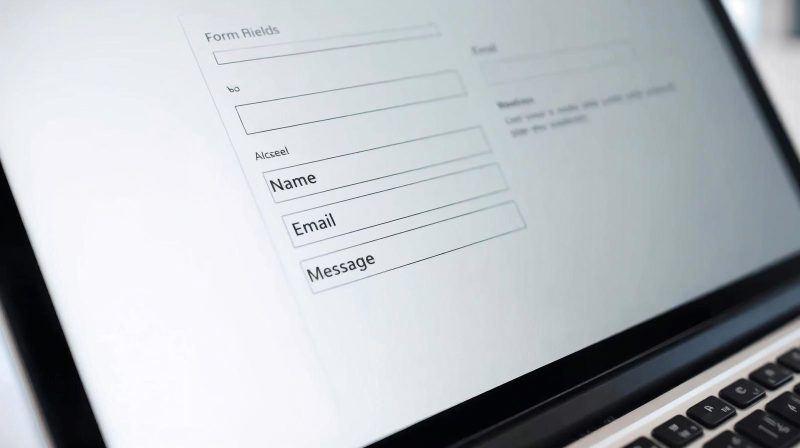
Every blogger needs a way for readers or potential clients to reach them. A contact form plugin makes this process easy and professional.
Recommended Plugins:
- WPForms: Beginner-friendly drag-and-drop form builder.
- Contact Form 7: Lightweight and highly customizable.
These plugins allow you to:
These WordPress plugins for beginners cover the basics: speed, SEO, security, and backups.
- Create simple contact forms or complex surveys
- Integrate forms with email marketing services
- Prevent spam with CAPTCHA protection
Tip: Always test forms on your staging site before publishing them live to ensure submissions work correctly.
6. Analytics Plugins: Understand Your Audience
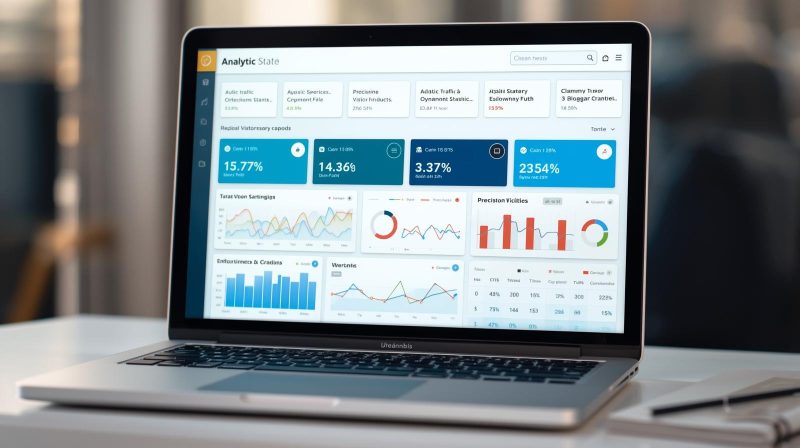
Knowing how visitors interact with your site is critical to growth. Analytics plugins provide data on traffic, engagement, and user behavior.
Recommended Plugin:
- MonsterInsights: Connects your WordPress site to Google Analytics with easy-to-read reports.
Benefits include:
- Identifying which posts drive the most traffic
- Understanding visitor demographics and behavior
- Tracking conversions if you sell products or services
Tip: Install analytics plugins early to start collecting historical data from day one.
7. Social Sharing & Engagement Plugins

Social media is a powerful traffic driver. Social sharing plugins make it easy for readers to share your posts, increasing visibility and engagement.
Recommended Plugins:
I still recommend these same WordPress plugins for beginners to anyone starting a blog in 2026.
- Social Snap: Add share buttons and follow icons for all major networks.
- Shared Counts: Lightweight plugin focused on fast performance and social sharing.
Advantages:
- Encourage organic sharing of your content
- Display follower counts to build credibility
- Integrate with email subscription forms
Tip: Don’t overcomplicate your site with too many social widgets — choose one plugin that covers your essential networks.
8. Optional Plugins for Content & Visuals

These plugins enhance your blogging experience and allow you to create visually appealing content:
- Elementor: Drag-and-drop page builder for custom layouts without coding
- Smush: Compresses and optimizes images for faster loading times
- Table of Contents Plus: Automatically generates tables of contents for long posts
These tools improve:
- Readability and user experience
- Site aesthetics and design consistency
- SEO performance through better structured content
Tip: Use optional plugins only if they truly add value — too many plugins can slow down your site.
9. How to Install Plugins on Your Staging Site
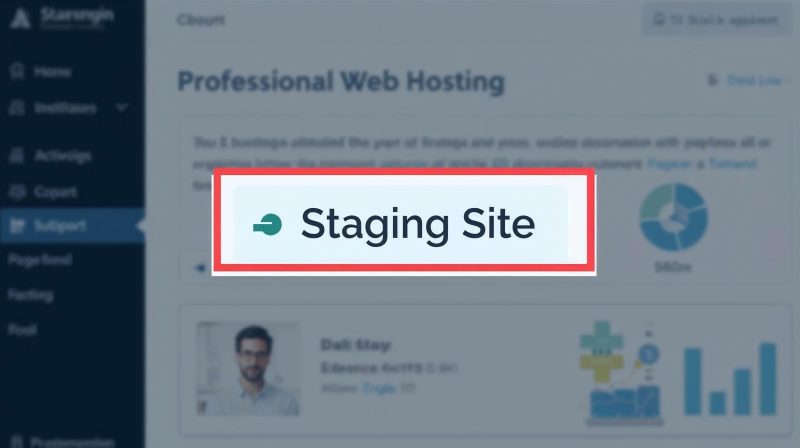
Before installing plugins on your live site, it’s crucial to use a staging site to test them safely. A staging site is essentially a clone of your live website where you can experiment, update, or troubleshoot without risking downtime or broken features on your main site. This is especially important for beginners who are still learning how different plugins interact with WordPress.
Step-by-Step Guide to Using a Staging Site:
Install a few of these WordPress plugins for beginners today and revisit this list again once your blog starts to grow.
- Log in to your hosting dashboard and activate the staging environment.
Most WordPress hosts, such as SiteGround, Bluehost, and WP Engine, provide an easy one-click setup for a staging site. This creates a duplicate of your live website in a safe environment. - Navigate to Plugins → Add New in your staging WordPress dashboard.
This is the same process you would use on your live site, but any changes you make here won’t affect your visitors. - Search for the plugin you want and click Install.
Take this opportunity to read plugin descriptions, check reviews, and confirm compatibility with your WordPress version before installation. - Activate the plugin and configure settings as needed.
Many plugins require setup or customization. Use this safe environment to experiment with different settings until you find the best configuration for your site. - Test the plugin thoroughly.
Navigate through your pages, posts, forms, and any interactive elements to ensure nothing breaks. Pay attention to load times, layout changes, and any console errors in your browser. - Once satisfied, push the changes to your live site.
Most hosts provide a simple “push to live” button that transfers your tested updates to your real website safely.
The Benefits of Doing This:
Using a staging site prevents accidental downtime, broken layouts, and conflicts between plugins or themes. It allows you to explore new tools with confidence, giving you full control over your site’s functionality without risking your live content or user experience.
Pro Tip: Always keep your staging site updated and delete outdated test plugins after pushing changes to keep it clean and efficient.
Final Thoughts: The Best WordPress Plugins for Beginner

By installing these 9 essential plugins, you’re setting your blog up for success. They cover:
- SEO optimization
- Security protection
- Speed and performance
- Backups
- Contact and engagement
- Analytics tracking
Remember: quality is more important than quantity. Start with these essentials, test on your staging site, and gradually expand your plugin toolkit as your site grows. When you get more fluent with your site, you’ll realize that the best WordPress plugins for beginners are not just for beginners – they are for those that know how to use them properly.
Plugins are the backbone of your WordPress site. They save time, improve functionality, and help you deliver a professional experience for your visitors. As a beginner blogger, mastering these tools early sets you up for long-term growth and success.
Once your plugins are installed and tested, you’ll be ready to focus on what matters most — creating amazing content and growing your audience.
note: all images in this post have been generated by canva AI. If there are mispellings, you know now that AI is not able to spell.
Coming back to this list of WordPress plugins for beginners every few months is a good habit once your blog starts to grow.
Whatever niche you’re in, these WordPress plugins for beginners are a solid starting point.
Don’t skip the setup step for these WordPress plugins for beginners — a few minutes of configuration now saves headaches later.